


Private Internet Access VPN
4.516.09K Reviews
App Specs
- Version
- 4.1.0
- Updated On
- License
- Free
- Downloads
- 10,000,000+
- Developer
- PIA Private Internet Access, Inc
- Categories
- Tools
- Platform
- Android
Screenshots
 Analysis by AppCompare
I use a VPN most when I’m tired of making the same privacy decision over and over: whether to trust the network I’m on, whether to remember to connect, and what to do when a connection drops. A good VPN should take some of that routine friction away without turning ordinary browsing into a settings project. Private Internet Access VPN is a tools app from PIA Private Internet Access, Inc, and its appeal is that it can serve both people who want a straightforward connection and people who prefer to tune how that connection works.
That balance matters in practice. If all you want is a big connect button, extensive configuration can feel like clutter; if you already know why you need custom DNS, port forwarding, or a proxy, a bare-bones VPN can feel limiting. I see this app as a better fit for the second kind of user than a purely automatic privacy switch, though a newcomer can still begin with the basic connection and leave the advanced choices alone.
What the app is trying to make easier
The recurring problem is not simply that public Wi-Fi exists. It’s that your connection habits change as you move between home, work, mobile data, and shared networks, while the consequences of a weak or unsuitable setup are easy to forget. A VPN gives you a consistent way to route traffic through a protected connection, but only if it’s convenient enough that you actually use it.
Here, I’d judge the experience less by how many controls appear on screen and more by whether they help you settle on a setup you can live with. The app’s main practical advantage is room to adjust the connection rather than treating every user and network as identical. The trade-off is that extra control invites decisions: choosing a server, considering DNS settings, or deciding whether a proxy belongs in your setup. If those choices sound like chores, a simpler VPN may suit you better.
A sensible first setup
For a first session, I’d keep it simple: install the app, connect using a nearby available server, and use the internet normally before changing anything. That gives you a useful baseline. If pages load as expected and your regular apps behave, there’s no need to start changing several settings at once. When a site or service feels unusually slow, try a different server before assuming the whole service is a poor fit.
The more advanced settings are best approached one at a time. A custom DNS choice, for example, can affect how your device looks up website addresses; port forwarding is a more specialized tool and is not something every casual browser needs. I would not turn on or alter settings just because they sound more secure. Make a change because you have a specific reason, then check whether the app or service you rely on still works as expected. That method makes it much easier to undo a change if it causes trouble.
There is also a useful distinction between having options and needing to use them. If you want a VPN mainly for routine browsing on unfamiliar networks, the basic connection may be all you need. If you already manage more involved network arrangements, the ability to configure DNS, port forwarding, and proxies makes the app more interesting, but each setting brings its own compatibility questions.
Worth Reading Before You Choose

EA SPORTS FC Mobile 26 Is a Bigger Football Game, but It Takes Time

Flipboard Shows What News Apps Must Do Beyond the Feed

Switching to Android Auto Means Rethinking Your Driving Routine

Google Calendar Makes a Crowded Week Easier to Manage

Ludo King Makes the Most of the Minutes Between Plans

Baby Panda World Brings Quick Play to Modern Phones, but Its Game Library Feels Busy
Using the connection in everyday life
I find this section most useful when thinking beyond the initial setup: a VPN earns its place by fitting into ordinary routines without constant troubleshooting. I’d pay attention to how a chosen server behaves on the networks I actually use, and keep any custom DNS, proxy, or port-forwarding changes tied to a clear need. That practical test leads naturally to deciding whether the added control is worth keeping.
When it earns a place in your routine
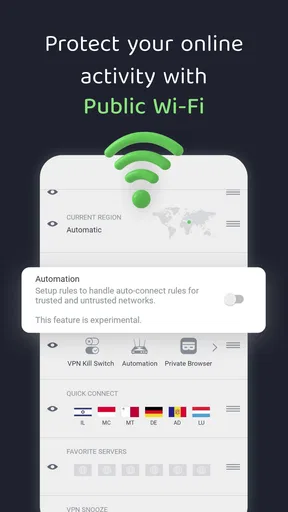
A realistic use case is a day that starts with checking messages on a home network, continues with a laptop or phone on café Wi-Fi, and ends with browsing while travelling. Rather than treating each change of network as a new privacy decision, I’d connect before using the shared network and keep an eye on whether the VPN remains active. The kill switch is relevant here: if the VPN connection drops, it is designed to block internet access rather than quietly letting traffic continue outside the VPN. That protection can interrupt what you’re doing, but the interruption is the point when maintaining the VPN connection matters more than uninterrupted access.
For people who regularly switch between networks, that is a meaningful trade-off. A dropped connection can mean pausing a download or reconnecting to a site, while a kill switch can prevent a brief lapse from becoming invisible. I would still treat it as a backup safeguard, not a substitute for checking the connection when privacy is important. If an app stops working, first check whether the VPN is connected and whether the kill switch is blocking access; then try a different server before changing several settings.
Customisation that can be useful rather than decorative
The app’s configuration options are most valuable when they solve a specific problem. Someone who needs a particular DNS setup has a reason to look beyond the default connection. A user who depends on port forwarding has a more specialized workflow, and should verify that the chosen configuration works for the service they actually use instead of assuming that enabling an option is enough. Proxy support can also matter in a network arrangement that calls for it, but it adds another layer to troubleshoot if connections fail.
My practical tip is to note your working settings before experimenting. Change one item, test the same sites or apps you normally use, and revert if the result is worse. That small habit is more useful than making several changes at once and then trying to guess which one caused a slowdown. It also keeps the app approachable: advanced controls remain available without forcing you to build a complicated setup on day one.
How it compares with simpler VPN choices
Many VPN apps in this category aim to reduce the decision to one tap and a recommended location. That style can be the better choice if you never want to think about DNS, proxies, or port forwarding. Private Internet Access takes a more configurable approach, so it can accommodate users who want to make deliberate network choices. In exchange, it asks for more attention than a minimal app, especially when a connection behaves differently across networks.
It is also worth separating a VPN from other privacy tools. A VPN changes how your internet traffic is routed; it does not make every website trustworthy, remove the need for sensible account security, or guarantee that every app will behave identically. I wouldn’t choose it as a replacement for a password manager, device updates, or careful handling of personal information. It is one part of a privacy routine, not a universal fix.
Who is likely to appreciate it
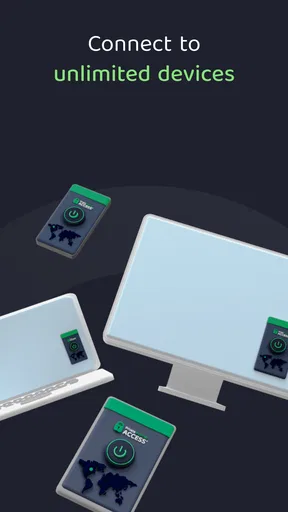
I’d recommend considering it if you use a VPN regularly, want more control than a connect-and-forget app provides, or have a concrete reason to adjust DNS, proxies, or port forwarding. It may also appeal if you use several devices: the published app information describes simultaneous connections on up to ten devices. That can make one account more convenient for someone keeping a phone, tablet, and other personal devices covered, though the value depends on the subscription terms that apply to your account.
On the other hand, skip it if you want a completely invisible service that never asks you to make choices, or if you only need a one-off solution for a single task. It is also not the right fix for slow internet caused by a weak Wi-Fi signal or an overloaded home connection; a VPN can add another step to the route rather than repairing the underlying network. If the extra routing makes a particular activity less responsive, disconnecting for that activity may be more sensible than endlessly switching settings.
What to expect from performance and support
VPN speed is not a fixed property of an app. It can vary with the server you select, the network you are using, and what you are trying to do. I’d use a nearby server as a starting point for ordinary browsing, then compare another location only when there is a clear reason. A distant server may be useful for a particular routing need, but it is not automatically the best choice for everyday speed.
The app is rated for Everyone, and its average is 4.5 from around 105,000 ratings, with roughly 16,000 written reviews. It has more than 10 million installs, so it is a widely used option, though popularity alone cannot tell you whether it will suit your network or habits. The app is free to install, while in-app purchases range from about $5.90 to $74.99 per item. I’d check the current offer and renewal details in the store before committing, rather than relying on an assumption that every plan has the same terms.
One follow-up question I’d ask before choosing any VPN is whether I can test it with my own routine. For this app, I would try the networks and services I actually use, check that the kill switch behaves as expected, and see whether changing servers is manageable. If you need help with a setting, customer support is presented as available through live chat; that can be useful when a configuration issue is beyond a quick server switch, but I’d still start by recording the setting you changed and the problem it caused.
Current fit and final judgement
The app was released on April 5, 2013, and its current version is 4.0.26, with Android 7.0 listed as the minimum operating-system requirement. Those details make it worth checking device compatibility before installing, particularly if you keep an older phone in service. They don’t tell me how a VPN will perform on a particular handset, so I’d judge that through a real trial on the networks you use rather than expecting identical results across devices.
Overall, I see Private Internet Access as a practical option for someone who wants a VPN with room to configure it, not merely a button that hides the complexity completely. Its strongest case is the combination of an accessible starting point and more specialized controls when you need them. Its main cost is attention: choosing servers and troubleshooting settings can take time, and a VPN can occasionally interfere with a service that expects a different connection.
If you want that flexibility and are willing to test your setup patiently, it is worth considering. If your priority is the fewest possible decisions, a simpler VPN may remove more friction from your day. I’d start with the default connection, make only purposeful changes, and keep the service only if it works reliably with the apps and networks that matter to you.
Setting Up and Getting Started
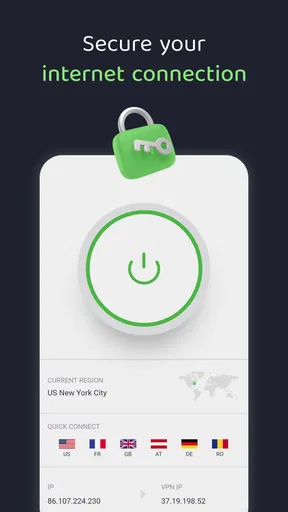
First things first, downloading and installing Private Internet Access VPN was a breeze. Available for both Android and iOS, you can grab it directly from the app store, and the setup process is straightforward. Once you open the app, you'll be greeted with a clean and intuitive interface. Seriously, even if you're not a tech whiz, you’ll find your way around in no time.
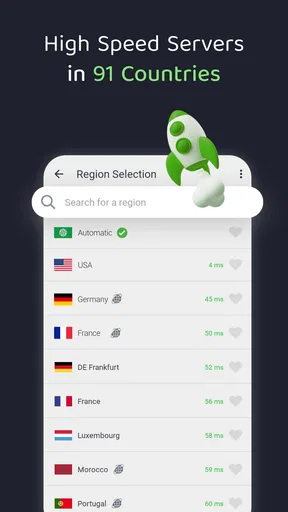
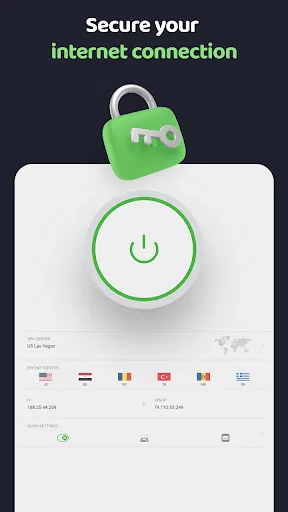
The app offers a variety of server locations to choose from. A quick tap lets you switch between servers to find the best connection. I found this super handy, especially when one server was a bit sluggish – just hop to another, and you’re back in business!
Features That Stand Out
Alright, let's talk features. Private Internet Access VPN comes packed with a bunch of goodies that make it a solid choice. One of the standout features is the ability to connect up to 10 devices simultaneously. Yeah, you heard that right! You can keep all your gadgets secure with one account. That's a win in my book.
The app also boasts military-grade encryption, which is a fancy way of saying your data is locked down tight. Whether you're browsing in a coffee shop or accessing sensitive information, this VPN's got your back. Plus, it has a built-in ad blocker, which is great for keeping those pesky ads at bay.
The Performance Test
So, how does it perform? In my experience, the connection speed was pretty impressive. I streamed videos and played online games without any noticeable lag. Of course, VPN speeds can vary, but for the most part, I was cruising along without a hitch.
One thing to note is that not all servers are created equal. Some were faster than others, but the app makes it easy to find and switch to a better option. It's all about finding that sweet spot!
User Experience and Accessibility
One of the things I appreciated most was how user-friendly the app is. The interface is straightforward, with clear options and settings. Even if you’re a VPN newbie, you won’t feel overwhelmed. The app also offers a kill switch feature, which automatically blocks internet access if the VPN connection drops – an essential feature for maintaining privacy.
Customer support is another area where Private Internet Access VPN shines. They offer 24/7 live chat support, so help is always just a click away. Whether you have questions about settings or run into a glitch, they’ve got your back.
Pricing and Plans
Now, let's talk numbers. The app offers several subscription plans, so you can choose what fits your budget. Typically, longer commitments come with better deals, so if you're planning on sticking with a VPN long-term, it's worth considering an annual plan.
They also offer a 30-day money-back guarantee, which is a nice touch. It's like a try-before-you-buy option. If it doesn't work out, you're not stuck with something you don't like.
Final Thoughts
To wrap it up, Private Internet Access VPN is a solid choice for anyone looking to boost their online privacy and security. With its easy setup, strong features, and reliable performance, it ticks a lot of boxes. The ability to connect multiple devices and the robust customer support are just icing on the cake.
Whether you're streaming, gaming, or just browsing, this VPN provides a seamless and secure experience. So, go ahead and give it a whirl – your online privacy will thank you!
Pros
- Fast connection speeds across servers.
- User-friendly interface for all levels.
- Supports multiple devices simultaneously.
- Strong encryption enhances security.
- Affordable pricing with flexible plans.
Cons
- Occasional connection drops in some areas.
- Limited split tunneling options.
- Interface lacks advanced customization.
- Not all servers support P2P sharing.
- Customer support can be slow at times.
FAQs for Private Internet Access VPN
What platforms is Private Internet Access VPN compatible with?
Private Internet Access (PIA) VPN is compatible with a wide range of platforms including Windows, MacOS, Linux, Android, and iOS. Additionally, it offers browser extensions for Chrome, Firefox, and Opera, and can also be configured on routers and gaming consoles, ensuring comprehensive protection across all your devices.
How does Private Internet Access VPN ensure user privacy?
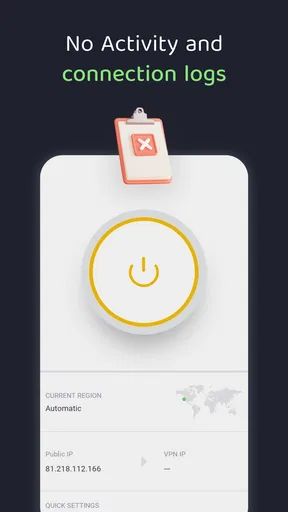
PIA VPN prioritizes user privacy with a strict no-logs policy, meaning it does not track or store any user activity. It uses top-tier encryption protocols like OpenVPN and WireGuard to secure your data, and features such as an automatic kill switch and DNS leak protection further enhance your online privacy.
Can Private Internet Access VPN unblock geo-restricted content?
Yes, PIA VPN is effective in unblocking geo-restricted content. It has a vast network of servers in numerous countries, allowing users to access content that may be restricted in their region, such as streaming services like Netflix, Hulu, and BBC iPlayer, with reliable speed and performance.
Is Private Internet Access VPN suitable for torrenting?
PIA VPN is highly recommended for torrenting due to its P2P-friendly servers and strong focus on privacy. It supports unlimited bandwidth and high-speed connections, ensuring smooth and secure torrenting experiences. The VPN's no-logs policy further assures users that their torrenting activities remain private.
What support options are available for Private Internet Access VPN users?
PIA VPN offers multiple support options including a comprehensive knowledge base, 24/7 live chat support, and email assistance to address user inquiries. The website also provides detailed setup guides and troubleshooting tips, ensuring users can easily resolve any issues they encounter.


